
Das is an extension designed to streamline the creation of TYPO3 websites. It enhances pages and content elements by adding extra fields for Bootstrap 5 classes and introduces a new collection of content elements, page layouts, and view helpers. This significantly reduces the effort required to build your site.
Once installed, your TYPO3 setup is ready to use, requiring no additional configuration. The front-end will be styled similarly to this site.
You can also create custom themes by developing your own extension. This allows you to modify constants, TSConfig, and partials while incorporating your own assets.
Das is based on the extensions Flux and Vhs.
Flux is based on pure Fluid and offers more versatility than TCA or content blocks when dealing with containers and grid layouts. Some of the new content elements (specially Columns) shipped with Das benefit from it.
Das comes with a lot of features to make a TYPO3 installation work out of the box.
New fields added to enhance all type of content elements.
Go to Content elementsA customized RTE so Bootstrap classes can be applied to text, links, buttons, badges, and tables.
Go to RTEFront end output can be fully customizable with your own assets and by editing the partials for each content element.
Go to ThemesFollow the steps:
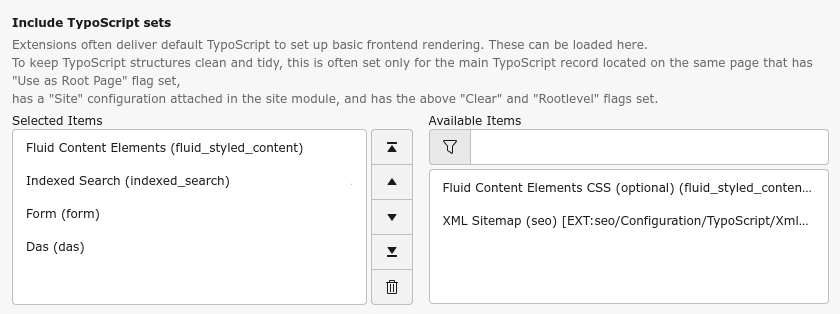
You can try Das in your local DDEV instance. Download this file:
This zip file contains all the necessary files (including a dump of the database, the fileadmin folder and the DDEV configuration) to install a replica of this site in your computer. Just follow the steps:
And you are ready to go: https://das.ddev.site. To access the back-end use the credentials: